
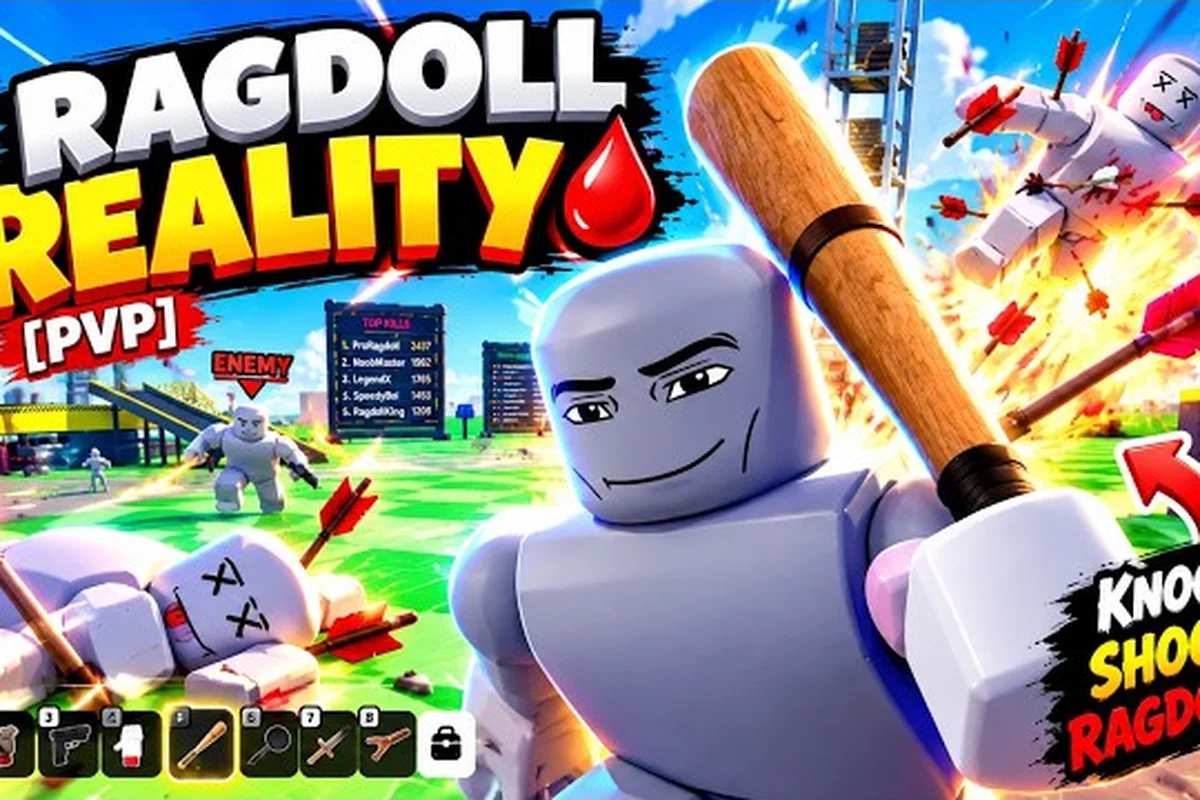
Joining Ragdoll Reality requires a stable internet connection, an updated Roblox client, and graphics settings that balance frame rate with visibility; for example, lowering Shadows and Reflections can reduce stuttering while keeping the ragdoll physics readable. If the game does not load, check the server status, restart the Roblox client, and clear the temporary files rather than repeatedly clicking Join. If low FPS persists, reduce the graphics quality, close unnecessary browser tabs, and test whether a wired connection performs better than Wi-Fi. These steps also make rejoining after a disconnect less likely to fail.
How to Join Through the Official Roblox Page
Joining Ragdoll Reality takes only a few minutes, but most connection problems begin before the game loads. The official Ragdoll Reality game page on Roblox is the best starting point because it provides the current server button, device support information, and any maintenance notices.
The key detail is that Ragdoll Reality uses Roblox’s normal controls and launches as a single-player physics sandbox. Its official page lists a maximum of one player, and private servers are not currently enabled, so the game does not have a separate co-op queue or friend-lobby process.
Start with a clean Roblox session
Before entering, close unused browser tabs and restart the Roblox client to clear stale processes. Ragdoll Reality’s physics sandbox can spawn many active objects, so extra browser tabs and background apps may compete for memory and CPU, causing low FPS or a misleading “not loading” result even when the connection is stable. This reset also prevents the browser from reopening an outdated Roblox session.
-
Sign in to Roblox or confirm that the correct account is active.
-
Open the official game page and select Play.
-
Wait for the loading indicator, then move the character into the playground.
-
If the page opens the wrong experience, return to Roblox’s game page rather than using an old shortcut.
-
If Roblox asks whether to open its installed application, allow it and wait for the client to update.
Before your first entry, close unused browser tabs and restart the Roblox client. This matters because the physics sandbox can generate many moving objects, and extra background applications may make the initial load feel slower even when the connection itself is stable.
Check the first screen
A successful entry should show the playground, your avatar, and interactive objects. The official description identifies the map as a dangerous playground with a Shredder, the train, the wrecking ball, the spike pit, the human cannon, the seesaw, and an 80-stud tower. If those elements appear, the game has loaded correctly.
A black screen, spinning icon, or endless loading bar means the session has not fully started. Do not continue changing controls at that point, because the game controls will not be active until the player object is ready. Close the game once, wait several minutes, and retry after the basic checks in the next section.
Join Fixes When Is Not Loading
When Ragdoll Reality is not loading, separate a Roblox-wide problem from a game-specific one. Open another Roblox experience first. If that also stalls, the priority is your account, client, browser, or network—not Ragdoll Reality’s controls or map.
Use this diagnostic table to narrow the cause quickly: compare whether Ragdoll Reality reaches its loading screen, remains on a black screen, or opens a playable server, because each stage points to a different failure. If the loading screen appears but the map never initializes, a slow graphics load or temporary asset delay is more likely than a Roblox-wide outage; if the experience never advances beyond the initial page, test your connection and client next.
| Symptom | Most likely cause | Recommended action |
|---|---|---|
| Every Roblox game stalls | Client, account, or network issue | Restart Roblox, sign out and in, then test another experience |
| Only this game stalls | Temporary server or asset load | Close the game, wait, reconnect, and clear the Roblox web cache |
| Page loads, then freezes | Overloaded device or graphics initialization | Lower graphics settings before retrying |
| Black screen after entering | Render or driver problem | Update graphics drivers and use the lowest available quality level |
| Friends cannot enter | Server occupancy or session mismatch | Wait for capacity, then start a fresh session |
Clear the Roblox cache safely
When the game page opens but the world never appears, closing and reopening the app may not remove a corrupted cache. On desktop, sign out of Roblox, clear the site data for Roblox in your browser, and restart the browser. Then sign back in and launch the game from its official page.
On mobile, force-close the Roblox application, confirm that the operating system itself is up to date, and reopen the game. If Ragdoll Reality still remains stuck on the loading screen, reinstall Roblox rather than repeatedly reloading the same session. A clean reinstall removes the local Roblox client files and cached runtime data, which can prevent the experience from launching even when the account and Ragdoll Reality page are reachable; you can then sign in again and retry joining.
Roblox client update is another essential step when diagnosing “Ragdoll Reality not loading.” Although the game publishes no separate system requirements, it still depends on Roblox’s current client, and an outdated installation can create loading failures that look game-specific. For example, if Ragdoll Reality remains stuck while the Roblox home page works normally, update the client, fully close and reopen Roblox, then retry joining the experience; this refreshes the runtime responsible for loading the game’s world and scripts.
Check server and account conditions
The official page data lists approximately 55,700 concurrent players and a single-player maximum, which means entry demand can be higher than the number of simultaneous solo sessions. A busy period may slow server assignment, although the official page does not publish exact queue estimates. If repeated attempts fail during heavy traffic, changing graphics settings will not help because the request is not reaching a usable server.
Also check whether parental controls, account restrictions, or a network firewall blocks Roblox. Because Ragdoll Reality runs inside Roblox, an administrator can prevent the game from launching even when the title itself is available. Testing a trusted connection can separate a device restriction from an account issue.
Start With Reliable Graphics Settings
Ragdoll Reality graphics settings determine whether the playground feels smooth once the world appears. A sandbox filled with physical objects can place a much higher load on your device than a conventional Roblox experience, so the highest settings are not always the best choice for a first session.
Recommended quality levels
Treat each device profile as a starting point, not a guaranteed frame-rate target, because Ragdoll Reality performance changes with screen resolution, device temperature, and scene complexity. For example, a recent phone set to Medium may handle the table’s practical balance of visibility and frame rate, but the same profile can stutter in crowded areas with many active ragdolls. If low FPS persists after joining, rejoin the session, lower the resolution first, and then reduce shadows or texture size one step at a time to identify the specific graphics setting causing the slowdown.
| Device profile | Graphics level | Shadows | Texture size | Practical result |
|---|---|---|---|---|
| Older phone | Lowest | Off | Lowest | Reduces heat and memory pressure |
| Recent phone | Medium | Off or limited | Medium | Balances visibility and frame rate |
| Desktop with integrated graphics | Low | Off | Low | Avoids stuttering in crowded areas |
| Capable gaming PC | High | On | High | Preserves visual quality when performance is stable |
Lower the resolution first if the frame rate remains unstable. A smaller display area often produces a larger improvement than changing decorative effects, especially on integrated graphics. Then reduce shadows, reflections, and texture quality one step at a time so you can identify which setting causes the slowdown.
Avoid changing everything at once
Start with the Lowest graphics preset, enter the game, and watch the frame rate and physics behavior after the scene fully loads. If movement is stable, raise only one setting—shadow quality, texture resolution, or effects—then repeat the same test. This isolates the actual cause: lower visuals may reduce GPU load, while persistent stutter after a settings change can point to a connection problem rather than a graphics bottleneck.
Do not judge performance only while standing still. Move through the playground, approach the tower, and watch multiple objects and dummies at once. The Ragdoll Reality control guide explains the actions that can create the heaviest visual activity, including grabbing, pushing, throwing, and using weapons.
Fix Low FPS Before Entering
Ragdoll Reality low FPS problems usually become obvious during rapid movement or when many physics objects occupy the screen. The remedy depends on whether the game is capped by rendering demand, thermal throttling, background applications, or a weak network connection.
Diagnose the slowdown
| Observation | Likely explanation | Best adjustment |
|---|---|---|
| Stutter disappears in empty areas | Rendering or physics load | Lower graphics quality and resolution |
| Delay continues in a quiet area | Network latency | Use a wired connection or stronger Wi-Fi |
| Phone becomes hot after several minutes | Thermal throttling | Close background apps and lower quality |
| Frame rate recovers after leaving the game | Device-specific load | Re-enter with lighter settings |
| Long pauses occur during weapon use | Rapid object or effect spawning | Lower shadows and texture quality |
A low frame counter and a network delay are not the same problem. Frame rate measures how smoothly your device renders the scene, while ping measures the delay between your device and the server. Lowering graphics can improve the first measurement, but it cannot repair unstable Wi-Fi.
Free resources before the session
Close video editors, screen recorders, streaming tools, and unused browser tabs. Disable operating-system overlays such as an animated wallpaper or high-resolution desktop if the game stutters on PC. On a phone, remove other games from recently used apps and start with the device’s normal performance profile.
For repeated low-FPS sessions, restart both the game and the device. A long-running Roblox client can accumulate temporary memory use, and restarting the entire device also clears that state. If the Ragdoll Reality game page guide has helped you confirm the experience is solo, you can focus entirely on local rendering rather than party or co-op performance.
Leave and Rejoin Without Losing Your Place
Knowing how to leave and rejoin is useful when the game freezes, a room becomes unavailable, or the client stops responding. Since Ragdoll Reality is a solo physics sandbox, leaving does not require organizing a group or transferring a host role. Your new session begins with the game’s standard spawn state rather than preserving a networked group session.
Leave the current experience
Use Roblox’s standard menu and select Leave or Leave Game. Do not repeatedly tap the game while it is frozen, because extra commands can delay the exit or make the client appear less responsive. If the menu does not open, use the Roblox application’s close control and confirm that you want to leave.
On mobile, close the activity from the app switcher only after using the in-game leave option. Force-closing can make the next session unstable in some cases, although the Roblox client normally reconnects afterward. The Ragdoll Reality mobile controls guide explains the touch interface available after a successful connection.
Rejoin cleanly
-
Return to the official Roblox game page.
-
Confirm the Play button is available.
-
Select Play once and allow the client to load.
-
Wait for the avatar and playground to appear.
-
Check movement and at least one action before exploring further.
If the game becomes unresponsive, close it, restart Roblox, clear the cache, and reconnect. If the client repeatedly reconnects to the same failed session, fully close the game before reopening the page. This breaks the stale connection and gives the client a chance to request a fresh server assignment.
Connection Checklist for Your Next Session
Before joining a Ragdoll Reality session, confirm that the server or co-op host has invited you and that the platform matches your account. Restart the client after closing it fully, then check the graphics settings and your internet connection if the world fails to load; a low-FPS session may also prevent the join prompt from appearing. If you were disconnected or asked to leave, use the rejoin option before creating a new session, and change only one setting at a time so you can identify whether the issue came from the invite, loading process, or performance.
Before joining
-
Open the official Roblox game page.
-
Update the Roblox client and, when applicable, the device.
-
Check that the account is signed in correctly.
-
Connect to a stable network, preferably Ethernet or strong 5 GHz Wi-Fi.
-
Close unnecessary applications and browser tabs.
-
Set the graphics level to Lowest or Medium for the first attempt.
During loading
-
Avoid restarting Roblox unless it remains frozen for several minutes.
-
Keep the Roblox window open and allow the network connection to complete.
-
Test another Roblox experience if the game fails twice.
-
Restart the client, then clear the cache if the failure persists.
After joining
-
Move for several seconds to check smoothness.
-
Look for visible map objects as proof that the world loaded.
-
Change only one graphics setting at a time.
-
Leave through the normal menu before closing the app.
The official game page identifies roughly 9.55 million visits, about 55,700 concurrent players, 34,700 favorites, and a like-to-dislike ratio near 9,761 to 2,142 as of October 25, 2026. These figures demonstrate the game’s reach, but they do not guarantee instant server access. The most effective path is to prepare the client, keep the network stable, and use moderate graphics before entering.
Frequently Asked Questions
Can I join Ragdoll Reality with friends?
Ragdoll Reality currently supports a maximum of one player per server, and the official page does not list private-server support. You may still open the game separately with friends, but they will not share your individual physics sandbox. Future server options could change, so check the current official Roblox page before planning a group session.
What should I do if Ragdoll Reality is not loading?
Confirm that another Roblox experience loads, then restart the Roblox client and test again. If other games work, clear the Roblox cache, update your device, and retry the official game page. During busy periods, wait before making repeated requests. Persistent failures may require reinstalling Roblox or checking network restrictions.
How can I fix Ragdoll Reality low FPS?
Lower the resolution, shadows, and texture quality, then test the game again in a busy area. Close background applications, restart the client, and avoid recording gameplay while testing. If lag remains even in quiet areas, check ping because connection delay can resemble poor rendering. Lower graphics will not resolve a network bottleneck.
Is it safe to force-close the game when it freezes?
Using the normal Roblox leave option is preferable because it closes the session cleanly. Force-closing can work, but restarting Roblox and clearing its cache afterward is a safer next step. If the client repeatedly crashes or hangs, reinstall Roblox and confirm that your device has enough free storage.
Can I rejoin a Ragdoll Reality session I left?
Ragdoll Reality is a solo sandbox, so returning starts a new solo session rather than restoring a shared room or party. Use the Play button on the official Roblox page after leaving. If the previous client remained stuck, close it completely, restart Roblox, and reconnect through the official page.